
The DDI Integration connects Innomesh Room Manager with your organisation’s Infoblox DDI (DNS, DHCP & IPAM) platform. When enabled, Innomesh automatically reserves standard and multicast IP addresses for devices during room deployment, keeping your Infoblox records in sync without manual intervention.
This article covers the full scope of the DDI Integration: IPAM administration, device-level IP reservation management, deployment behaviour, template support, and the permissions that control each feature.
IPAM Administration
IPAM administration is found under Administration → IPAM in Room Manager. It contains two tabs: Subnet Groups and Settings.
Subnet Groups
A Subnet Group is a logical collection of one or more subnets used for automatic IP address assignment. When Innomesh deploys a room, it draws free IP addresses from the Subnet Groups assigned to each device.
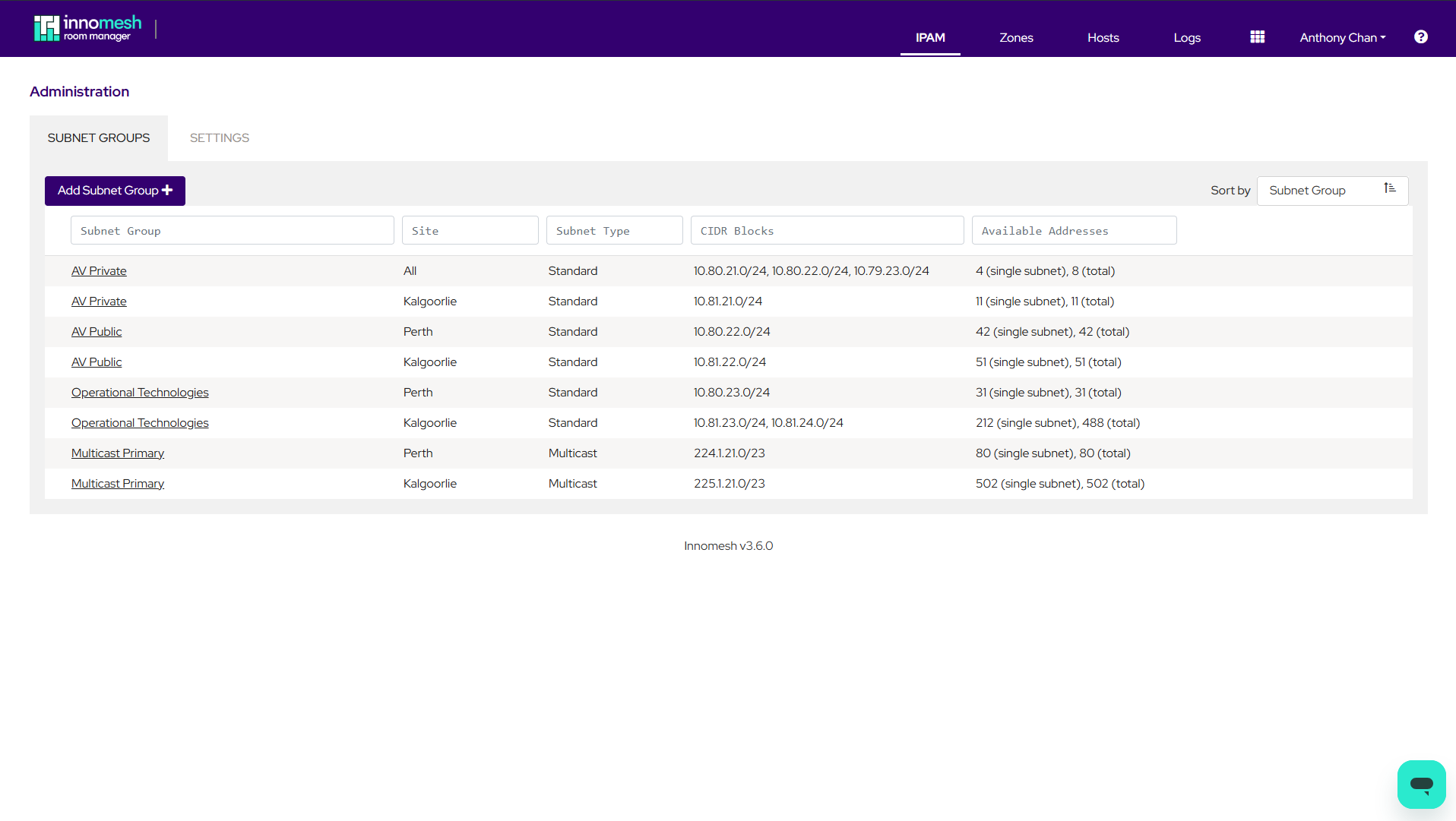
The Subnet Groups tab displays a searchable, sortable, and exportable table with the following columns:
| Column | Description |
|---|---|
| Subnet Group | The name of the subnet group. Click to edit. |
| Site | The Site this subnet group is available to. “All” means it can be used in any room. |
| Subnet Type | Either Standard (unicast IP addresses) or Multicast. |
| CIDR Blocks | The subnets assigned to this group, in CIDR notation (e.g. 10.80.21.0/24). |
| Available Addresses | Two values: the most available in any single subnet / total available across all subnets. |
Available address counts are refreshed each time the page loads.
Creating a Subnet Group
- Click New Subnet Group.
- Enter a Name for the subnet group.
- Select a Site from the dropdown. Choose “All” to make the subnet group available for rooms at any Site.
- Select the Subnet Type: Standard or Multicast.
- Optionally tick IP allocation can span more than one subnet. When enabled, a deployment may draw IPs from multiple subnets if a single subnet lacks sufficient addresses.
- Click Add Subnet and enter a CIDR block (e.g.
10.80.21.0/24). Innomesh validates each subnet against the DDI system. If the subnet does not exist in Infoblox, it is flagged as invalid. - Add additional subnets as needed, then click Create.
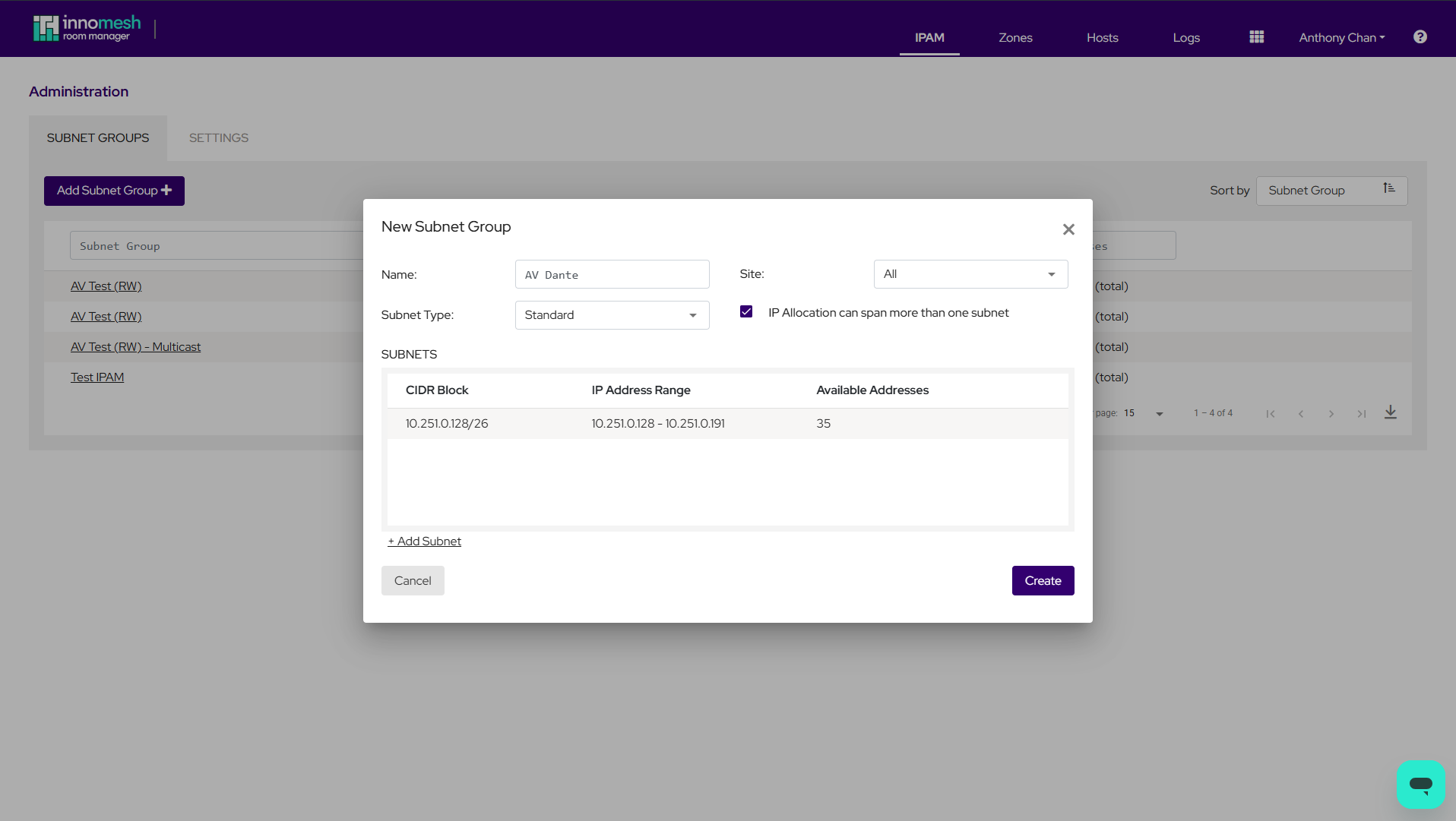
Editing a Subnet Group
Click the subnet group name or press the Edit button. The Name, Site, and Subnet Type are read-only. You can modify the spanning setting and add, edit, or remove subnets.
Deleting a Subnet Group
Press the Delete button to open a confirmation modal.
Settings
The Settings tab configures global IPAM behaviours for hostname validation and automatic hostname modification when moving rooms between Zones.
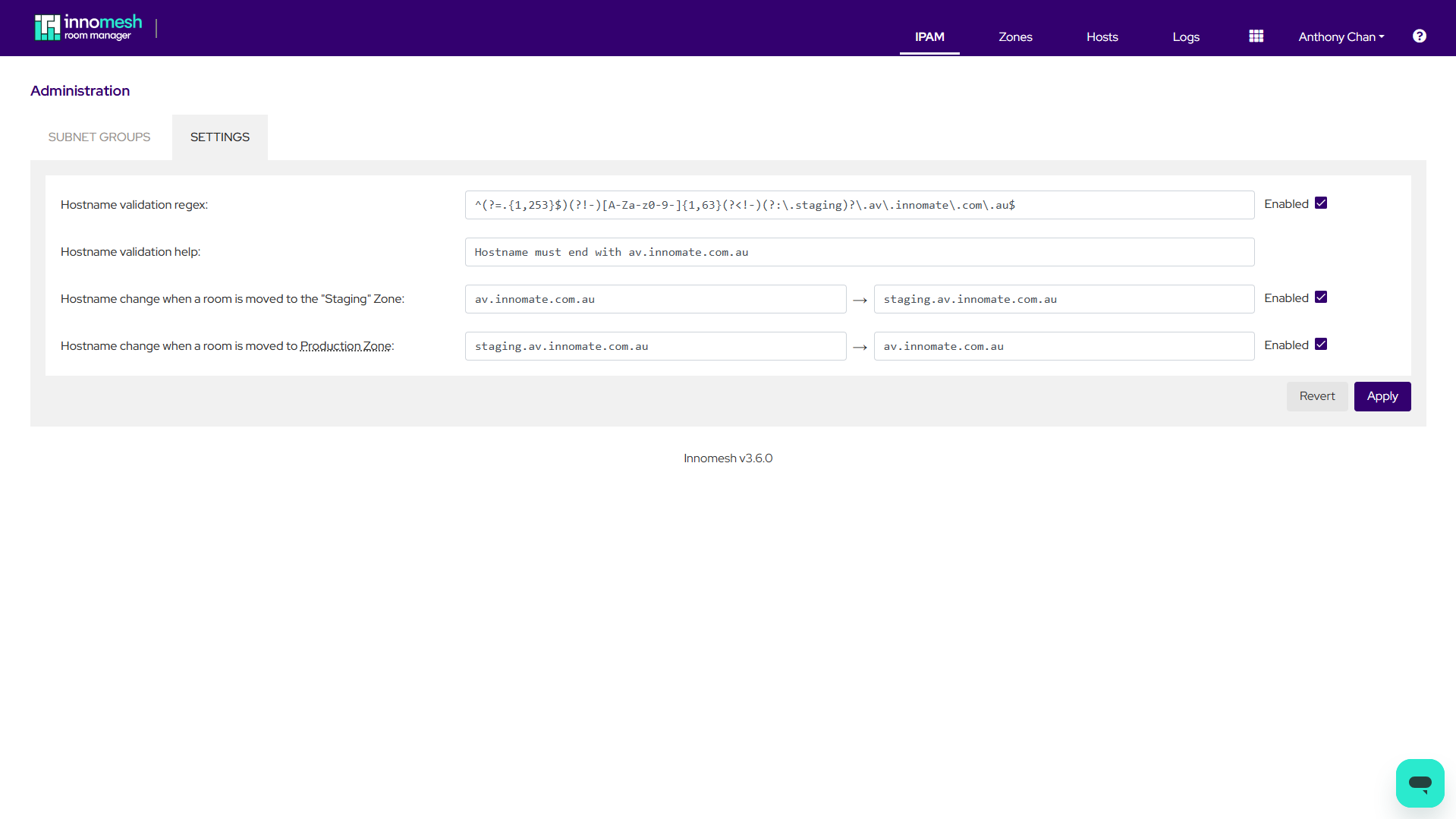
| Setting | Description |
|---|---|
| Hostname validation regex | A regular expression pattern that all device hostnames must match (e.g. hostnames must end with .av.example.edu.au). |
| Hostname validation help | Custom tooltip text displayed when a hostname fails validation. |
| Staging hostname modification | Find-and-replace strings applied to device hostnames when a room is moved into the “Staging” Zone. For example, replace av.example.edu.au with staging.av.example.edu.au. |
| Production hostname modification | Find-and-replace strings applied when a room is moved from Staging into a production Zone. This is typically the reverse of the staging rule. |
Each feature can be individually enabled or disabled via its checkbox. Disabled features clear their fields. Press Apply to save, or Revert to undo unsaved changes.
Room Configuration: Devices
For DDI-enabled tenants, the device list within a room configuration gains additional columns and inline editing capabilities.
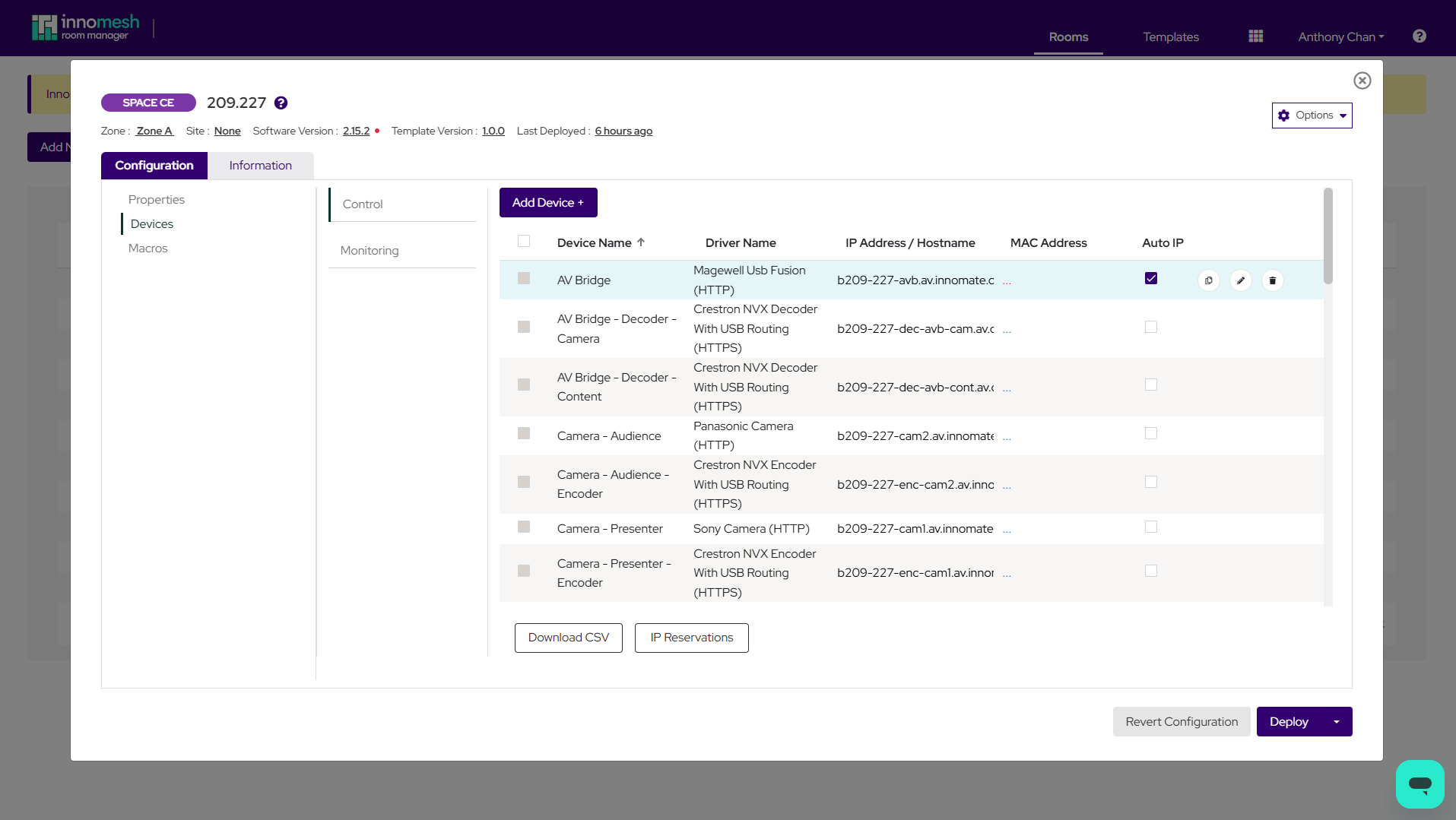
| Column | Description |
|---|---|
| Hostname / IP Address | The device’s hostname (or IP address if Auto IP is disabled). Validated against the admin-defined regex pattern. |
| MAC Address | Inline editable. Automatically formatted to XX:XX:XX:XX:XX:XX uppercase on focus loss. |
| Auto IP | Checkbox to enable or disable automatic IP reservation for this device. |
Auto IP
Auto IP controls whether Innomesh will automatically reserve an IP address for the device during deployment.
- Enabled: A valid MAC address and hostname is required (IP addresses are not accepted). A Subnet Group must be selected. Innomesh will assign a free IP from the selected Subnet Group at deployment time.
- Disabled: A hostname or IP address is accepted. No automatic reservation occurs. The value is treated as a static entry.
New devices automatically have Auto IP enabled. The ability to toggle Auto IP may be restricted by the Toggle device Auto IP settings permission. If a user lacks this permission, the checkboxes appear as read-only.
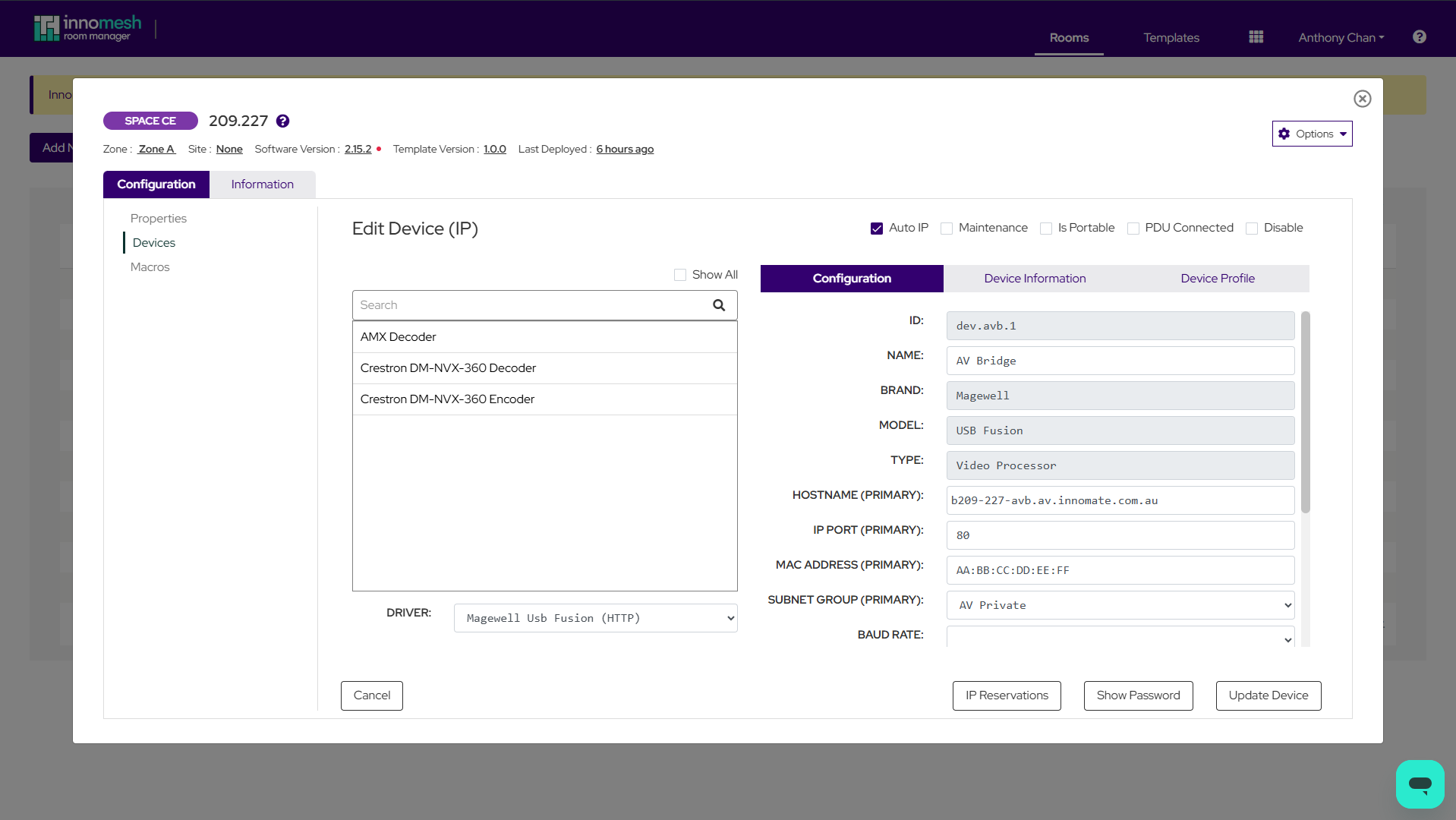
New/Edit Device (Auto IP Enabled)
When Auto IP is enabled, the device configuration tab is adjusted:
- The Hostname field becomes Hostname (Primary).
- MAC Address (Primary) appears under the Configuration tab.
- A Subnet Group (Primary) dropdown is added, filtered to Subnet Groups matching the room’s Site or set to “All”.
- An IP Reservations button opens the full IP Reservations modal for managing multiple reservations.
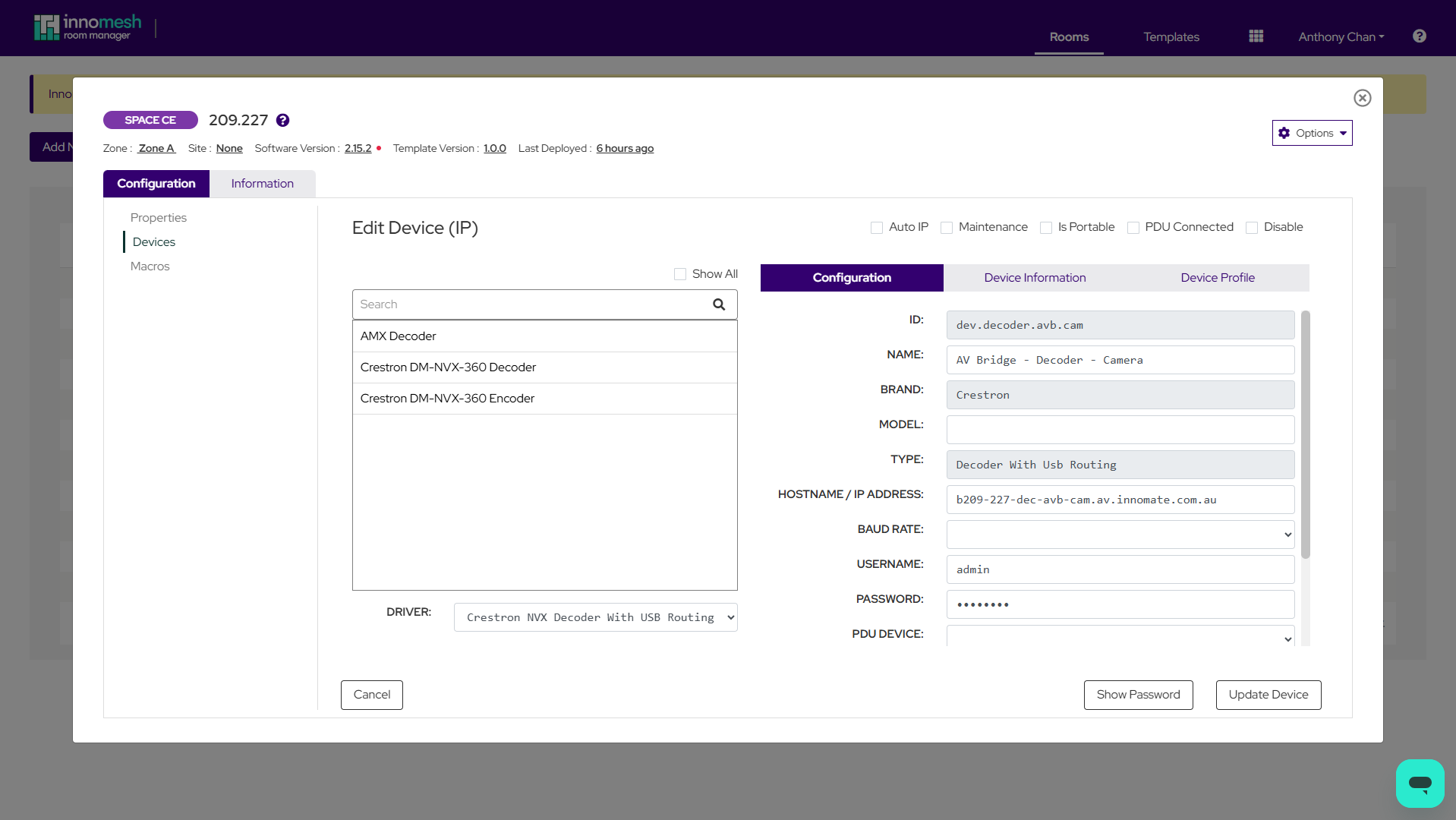
New/Edit Device (Auto IP Disabled)
When Auto IP is disabled, the Hostname and IP Address fields are combined into a single Hostname / IP Address field. The IP Reservations button is not available.
IP Reservations Modal
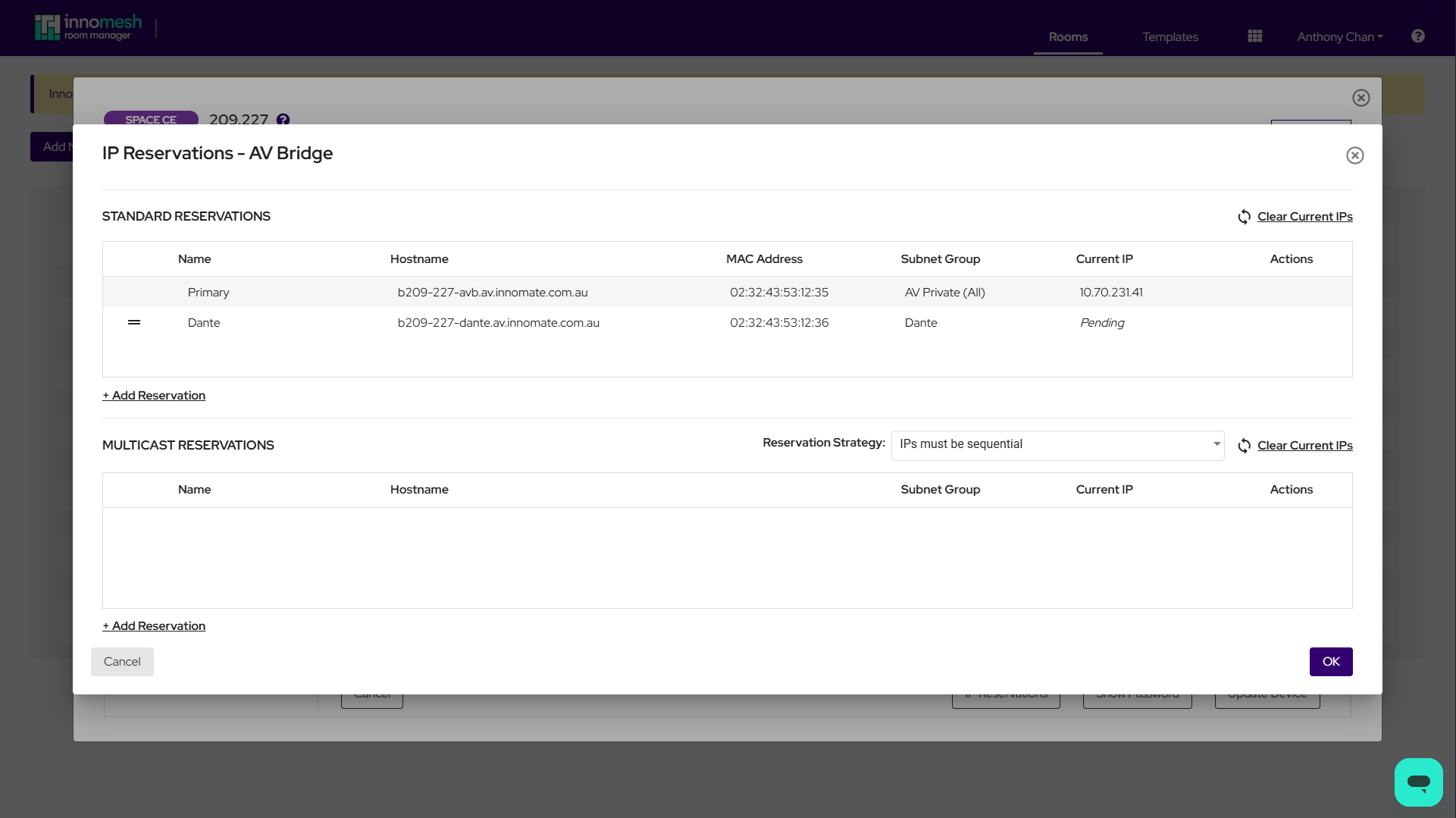
The IP Reservations modal is accessed from the IP Reservations button on the device edit page. It provides full control over standard and multicast IP reservations for a single device.
Standard Reservations
Every device with Auto IP enabled has at least one standard reservation named Primary. The Primary reservation cannot be deleted or reordered; it always appears first.
Additional standard reservations can be added for devices with multiple network interfaces. For example, a DSP might have a “Primary” reservation for its control interface and a “Dante” reservation for its audio network interface.
Each standard reservation includes:
- Name: A label for the reservation (e.g. “Primary”, “Dante”).
- Hostname: Must match the admin-defined regex pattern.
- MAC Address: The network interface’s MAC address.
- Subnet Group: The Subnet Group to reserve an IP from.
- Current Reservation: The assigned IP address, or Pending if not yet reserved.
Non-Primary reservations can be reordered by dragging the handle at the start of the row.
Click Clear Current IPs to mark all standard reservations for re-assignment during the next deployment. This does not immediately remove IP addresses from Infoblox; reassignment occurs when the room is deployed.
Multicast Reservations
Multicast reservations are used for devices that require multicast IP addresses (e.g. video and audio streams). The hostname for each multicast reservation is read-only and automatically synchronised from the Primary standard reservation.
Only Multicast-type Subnet Groups are available for selection.
Reservation Strategy
Multicast reservations support a configurable allocation strategy:
| Strategy | Behaviour |
|---|---|
| IPs may be non-sequential | Addresses are allocated from any available position in the subnet. |
| IPs must be sequential | Addresses are allocated as a contiguous block. |
| Sequential, starting with an odd last octet | Contiguous block where the first address has an odd last octet (e.g. x.x.x.53, x.x.x.54). |
| Sequential, starting with an even last octet | Contiguous block where the first address has an even last octet (e.g. x.x.x.6, x.x.x.7). |
Extensible Attributes (Per Reservation)
Each reservation row includes an Extensible Attributes button (the EA icon). Clicking it opens a modal to view and manage key-value pairs that will be pushed to Infoblox with the reservation.
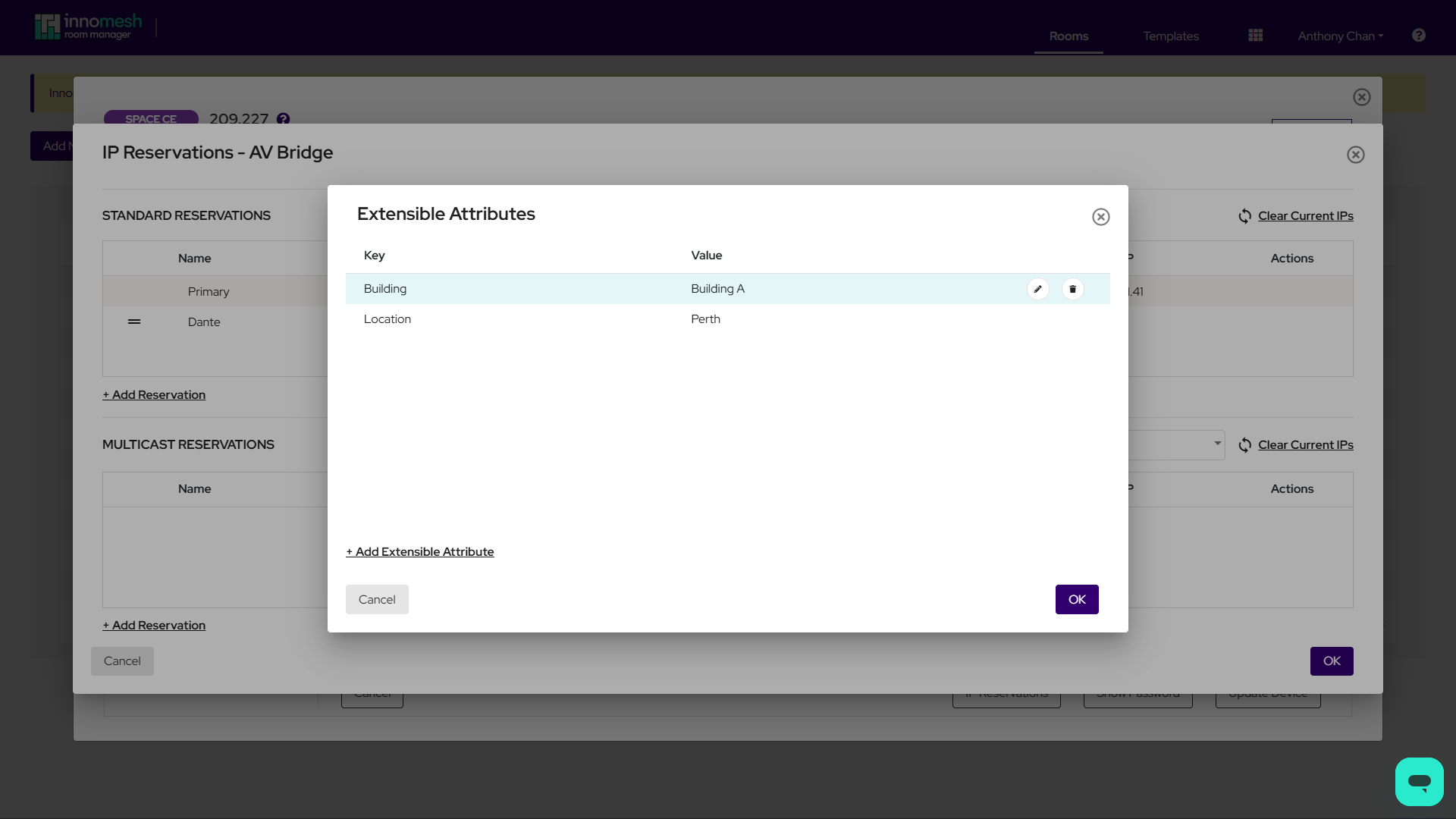
- Key: Selected from a dropdown of available EAs defined in Infoblox.
- Value: Input type depends on the EA type: free text for String/URL/Email, numeric input for Integer, date picker format for Date, or a dropdown for Enum types.
- Some EAs may be configured as hidden (not shown) or read-only (visible but not editable) by Innomate.
- For standard reservations, EAs are shared across all reservations with the same hostname, even across different devices.
- Enum-type EAs include a “Custom” option that converts the dropdown into a free-text field, useful for entering dynamic expressions.
Room IP Reservations View
Access the room-level IP Reservations view from the View IP Reservations button on the room configuration page. This provides a consolidated, read-only table of all standard and multicast reservations for the room.
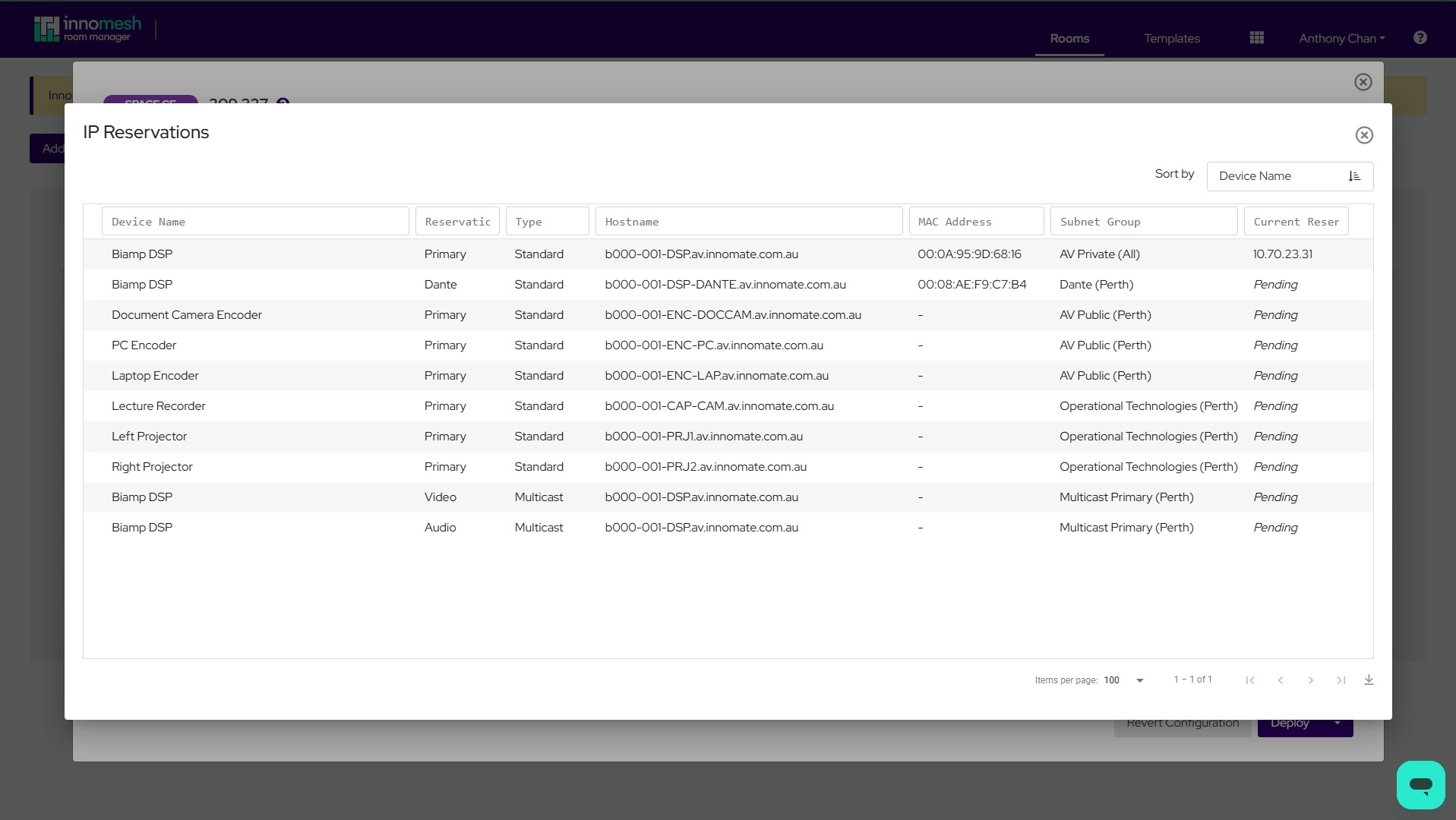
The table shows: Device Name, Reservation Name, MAC Address, Hostname, Subnet Group, and Current Reservation.
Hover over a reservation to see additional detail including Netmask, Gateway, and any Extensible Attributes.
Export the table as a CSV file to receive additional columns for Netmask, Gateway, and one column per Extensible Attribute in use across the room’s reservations.
Site and Zone Behaviour
Assigning a Site
When a room’s Site is changed, Innomesh automatically reassigns device Subnet Groups to match the new Site. The reassignment follows this priority:
- Look for a Subnet Group with the same name at the new Site.
- If not found, look for a Subnet Group with the same name with Site set to “All”.
- If neither is found, the Subnet Group for that device is cleared.
Any current IP addresses that fall outside the new Subnet Group’s range are set back to Pending.
Assigning a Zone (Staging / Production)
When a room is moved between Zones, Innomesh can automatically modify device hostnames according to the rules configured in IPAM Settings:
| Target Zone | Behaviour |
|---|---|
| Staging | Hostnames are modified according to the staging find/replace rules (e.g. av.example.edu.au → staging.av.example.edu.au). |
| Production | The production find/replace rules are applied (typically the reverse of staging). |
| Parking Lot | No hostname changes are made. |
Hostname modifications apply to all reservations (standard and multicast) across all devices in the room.
Deployment Behaviour
Creating or Updating a Room
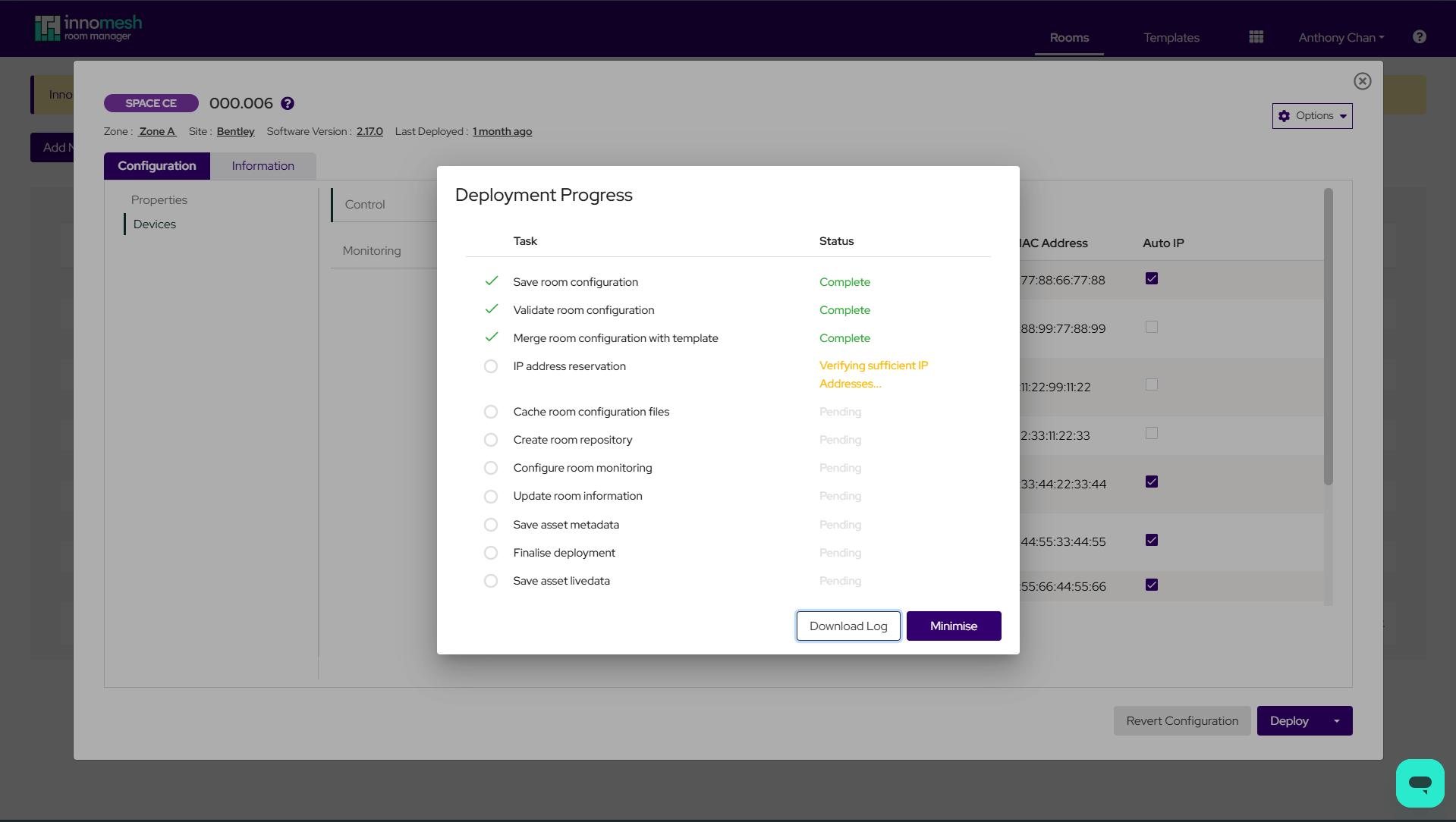
When a room with Auto IP-enabled devices is deployed, Innomesh performs the following steps:
- Validate: Hostname formats, MAC addresses, Subnet Group assignments, and device IDs are checked.
- Check availability: Sufficient free IP addresses are confirmed for all requested Subnet Groups.
- Adopt existing records: If an Infoblox host record already exists for a matching hostname and MAC, Innomesh “adopts” it by tagging it with Innomesh metadata.
- Remove unused records: Records for devices that have been removed from the room configuration are deleted from Infoblox.
- Update existing records: Records are updated as needed to reflect changes to hostnames, MAC addresses, IPs, or Extensible Attributes.
- Create new records: New Infoblox records are created for new devices and reservations.
- Restart DNS/DHCP services: Infoblox grid services are restarted to apply changes.
- Save reservation data: The reservation list is stored for future reference.
Deleting a Room
When a room is deleted:
- All Innomesh-managed Infoblox records for the room are removed.
- DNS/DHCP services are restarted.
- The reservation list is removed.
Templates
IP reservations can be pre-configured at the template level, so that rooms created from a template inherit the reservation settings automatically.
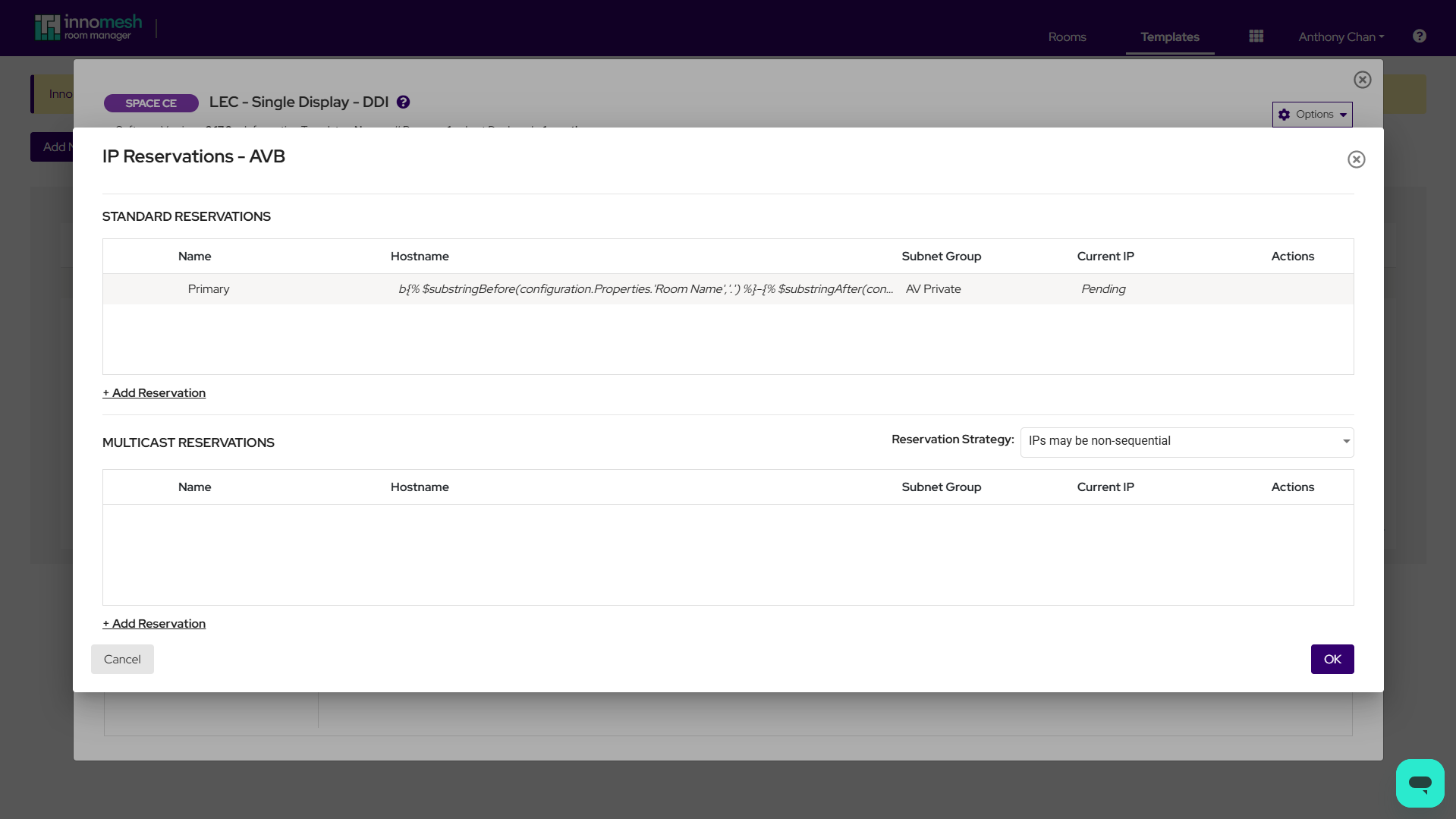
Template IP reservation configuration is identical to room-level configuration, with the following differences:
- MAC Address is not available (it is room-specific).
- All Current Reservation values are shown as Pending.
- All Subnet Groups are selectable, regardless of Site.
- The Clear Current IPs button is not shown.
When a room is created from a template, IP reservation settings (including Extensible Attributes) are inherited. Changes made to a template do not retroactively affect existing rooms.
Dynamic Expressions
Both room and template configurations support dynamic expressions for values that should be computed from other parts of the configuration. Expressions are enclosed in {% %} braces and are resolved at deployment time.
For example, a hostname pattern in a template might be:
dsp1-{% $lowercase(configuration.Properties.`Room Name`) %}.av.example.edu.auFor a room with Room Name “GP-A123”, this resolves to dsp1-gp-a123.av.example.edu.au.
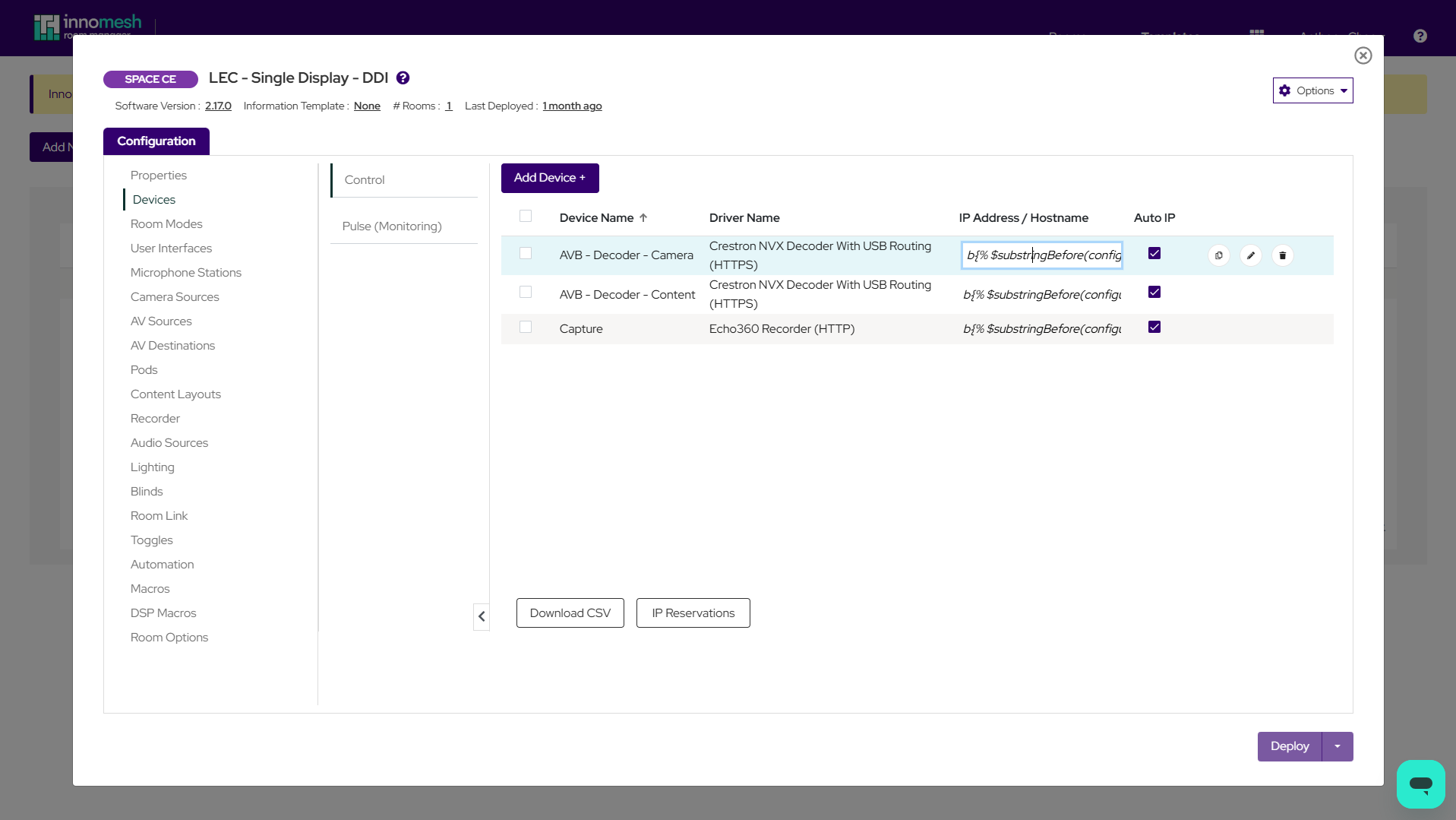
Key behaviours:
- Fields using dynamic expressions appear in italics.
- Hovering over these fields shows a tooltip with the dynamic expression.
- Updating a referenced field (e.g. Room Name) automatically updates all expressions that reference it.
- Expressions can be used in hostnames and Extensible Attribute values.
Usage tips:
- Dynamic expressions use JSONata notation. See the official documentation or contact Innomate support for assistance.
- Dynamic expressions reference the room’s main SpaceCE/VC or monitoring configuration JSON, and can be seen by selecting “Download as JSON” from the Options menu.
- A reference to the main SpaceCE/VC configuration begins with
configuration., followed by the properties within the exported JSON, e.g.configuration.Properties.`Room Name` - A reference to the monitoring configuration begins with
monitoring., followed by the properties within the exported JSON, e.g.monitoring.room_name
Permissions
The following RBAC permissions control access to DDI features:
| Permission | Scope |
|---|---|
| IPAM: Manage Subnet Groups | Create, edit, and delete Subnet Groups under Administration → IPAM. |
| IPAM: Manage Settings | Configure IPAM settings (hostname validation, staging/production hostname rules). |
| Toggle device Auto IP settings | Enable or disable Auto IP per device. Without this permission, Auto IP checkboxes are read-only. |
Standard room permissions (view, edit, deploy) continue to apply. Users can deploy rooms with IP reservations as long as they have the appropriate room-level permissions.