Introduction
Asset Automation is a feature in Innomesh Portal v3.6.0 that lets administrators define policies to automatically run asset actions based on specific triggers. Instead of manually responding to faults or repeating the same configuration tasks each day, automation policies handle it for you, reducing response times and freeing up support resources.
In this release, two policy types are available: time-based policies for scheduled, recurring actions, and alert-based policies that trigger actions in response to hotlist alerts for self-healing scenarios.
Key Concepts
Automation Policies
An automation policy is a rule that defines three things:
- Which assets the policy targets (selected by asset profile, with optional filters).
- What actions to perform on those assets (e.g., set volume, reboot, PoE reboot).
- When to run the actions (on a schedule, in a maintenance window, or in response to an alert).
Policy Types
| Policy Type | Trigger | Best For |
|---|---|---|
| Time-Based | Daily or weekly schedule | Configuration enforcement, pre-emptive reboots, end-of-day shutdowns |
| Alert-Based | Hotlist alert matching a condition | Self-healing: automatically remediating offline devices, connectivity issues |
Actions
Actions are the operations performed on each targeted asset. The list of available actions changes depending on the selected asset type. For example, a Neat Bar Pro supports Set Language, Set Volume, Set Auto Update, and Reboot, while a Poly Studio X72 may only support Set Volume and Reboot.
Two special actions are also available that don’t run on the device itself, but on the infrastructure it’s connected to:
- PDU Reboot: Cycles the power outlet on a connected power distribution unit, rebooting the device.
- PoE Reboot: Temporarily cuts power to the asset’s network port on a connected network switch, effectively rebooting the device.
These connected-device actions rely on the asset’s PDU or network switch relationship being defined in the Innomesh Room Configuration.
Action Staggering
When a policy contains multiple actions, they are automatically staggered by a minimum of 10 seconds per action to allow time for the previous action to complete. Certain actions may have longer built-in wait times as defined by Innomesh (e.g., a reboot may require 30 seconds, a firmware update may require 5 minutes).
If a policy targets multiple assets in different rooms, each asset has an independent timeline of actions. Actions on separate assets run simultaneously, while actions on the same asset run sequentially with staggering.
Timezone Handling
Actions are scheduled and run according to the local timezone of the room where the asset is located. If a policy is set to run at 8:00 PM, it runs at 8:00 PM in each room’s local timezone. The Scheduled Actions page displays the scheduled time converted to the viewing administrator’s local timezone.
For example, if you manage rooms in both the USA and Australia, a policy set for 8:00 PM will run at 8:00 PM local time in each location. The schedule view will show the equivalent time in your timezone (e.g., 2:00 PM for a 10:00 PM USA action when viewed from Australia).
How It Works
Creating a Time-Based Policy
Time-based policies run actions on a recurring daily or weekly schedule. A typical use case is enforcing device configuration every morning so that newly installed or replaced devices are automatically configured to organisational standards.
- Navigate to Administration → Automation → Policies.
- Click New Policy and select Time-Based.
- Enter a descriptive name (e.g., “Neat Bar Pro Configuration Enforcement”).
- Select the target asset type. Search by name, or click the star icon to browse your organisation’s favourited asset profiles.
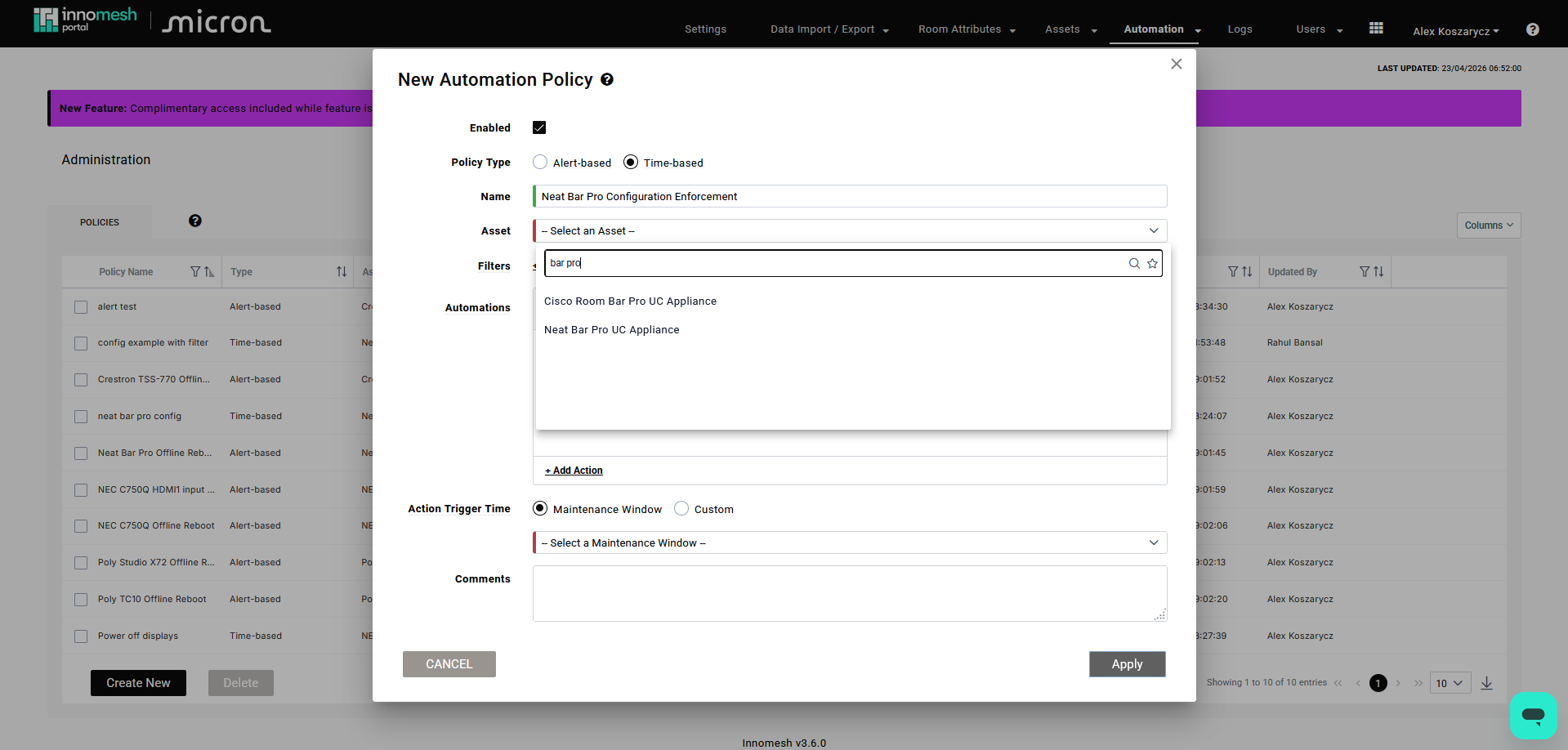
Select asset type | Innomesh Portal v3.6.0
- Optionally add filters to restrict the policy to specific rooms or user groups (see Filtering and Targeting).
- Under Automations, click Add Action to build the list of actions to perform. Available actions depend on the selected asset type.
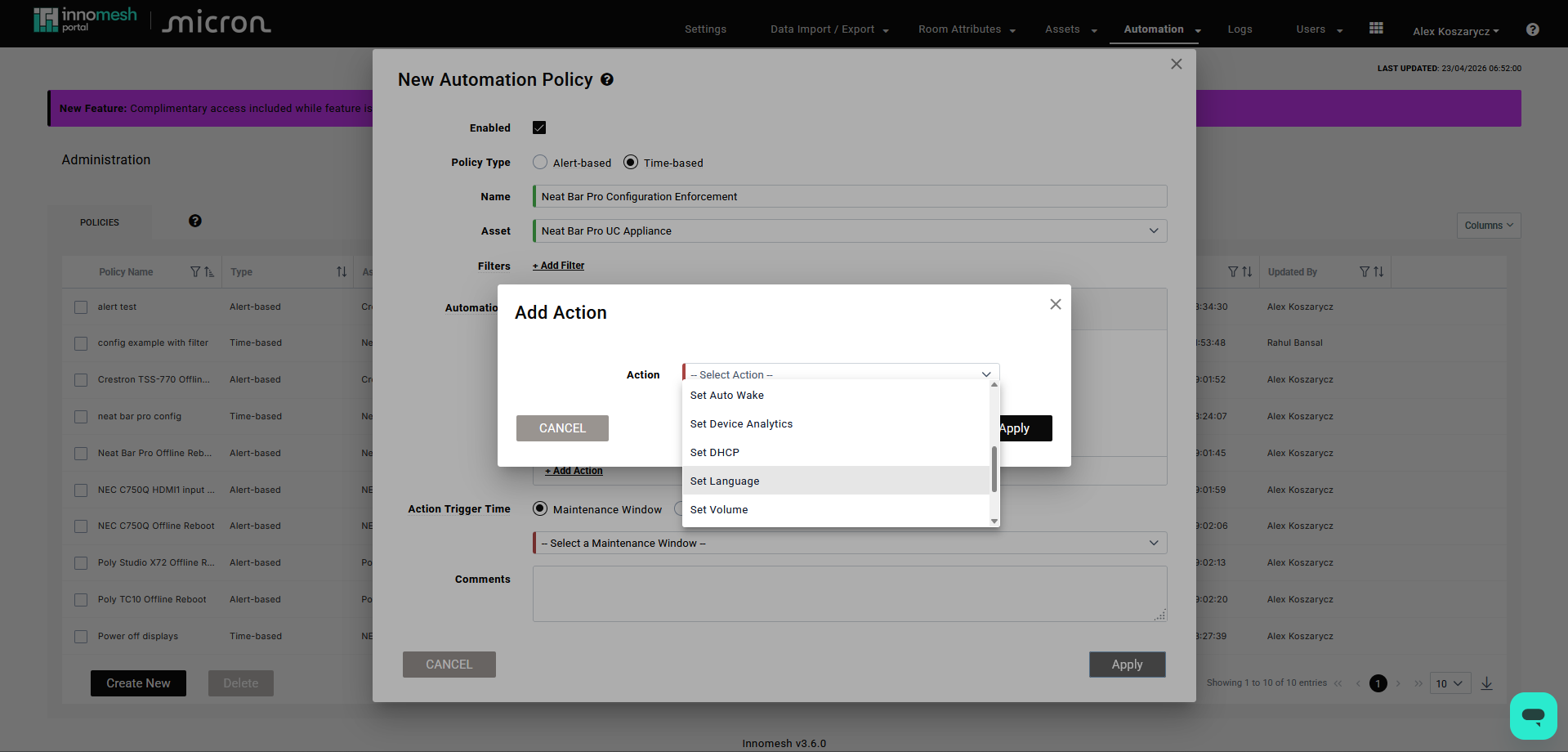
Configure actions | Innomesh Portal v3.6.0
- Reorder actions via drag and drop. Use the duplicate, edit, and delete controls on each action as needed.
- Choose when to run:
- Select a pre-configured maintenance window (e.g., Weekday After Hours, Weekday Mornings, Weekend Maintenance).
- Or select Custom Time and choose a time and which days to repeat.
- Optionally add a comment to explain the policy’s purpose to other administrators.
- Click Apply.
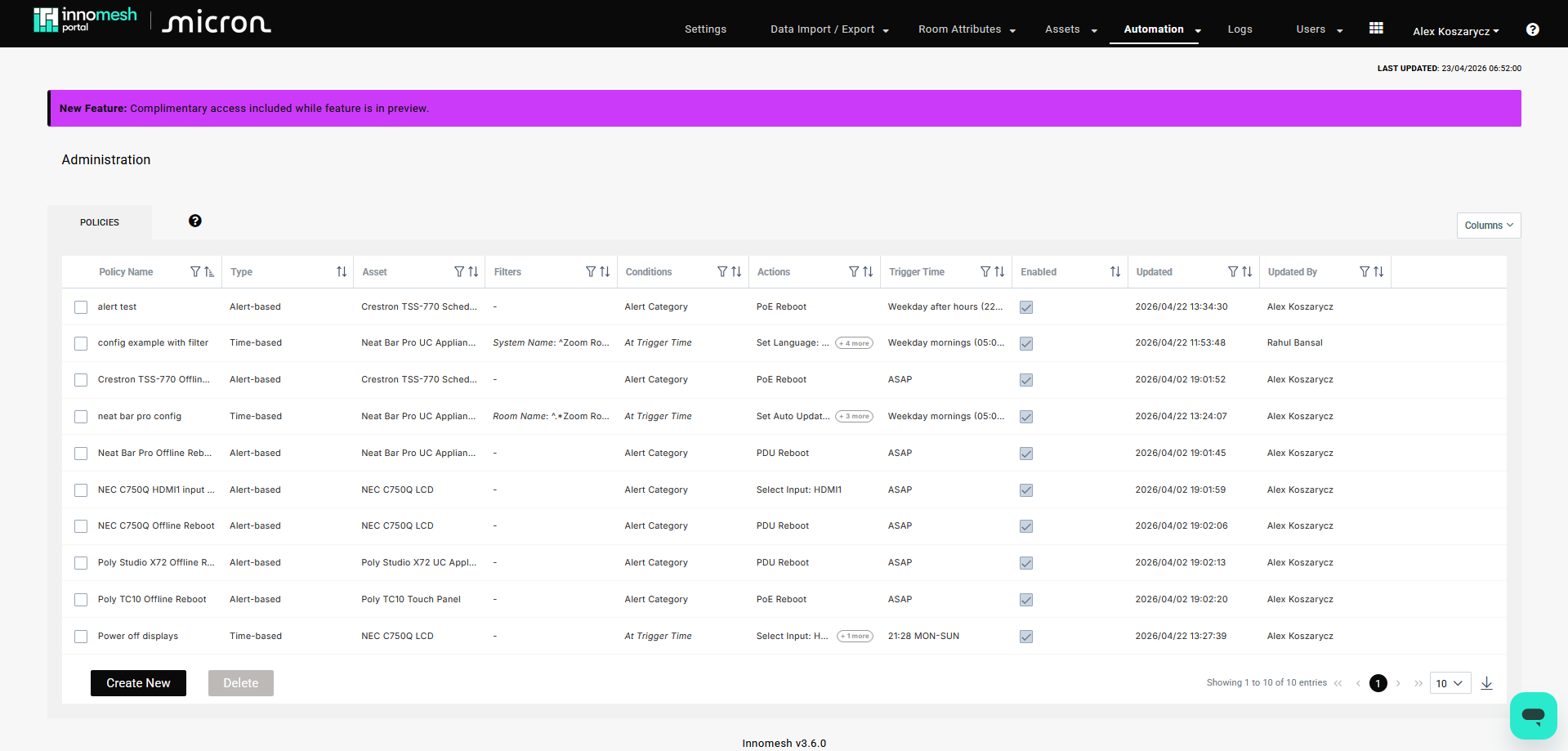
After saving, the policy appears in the Automation Policies list with its filters, actions, and schedule displayed.
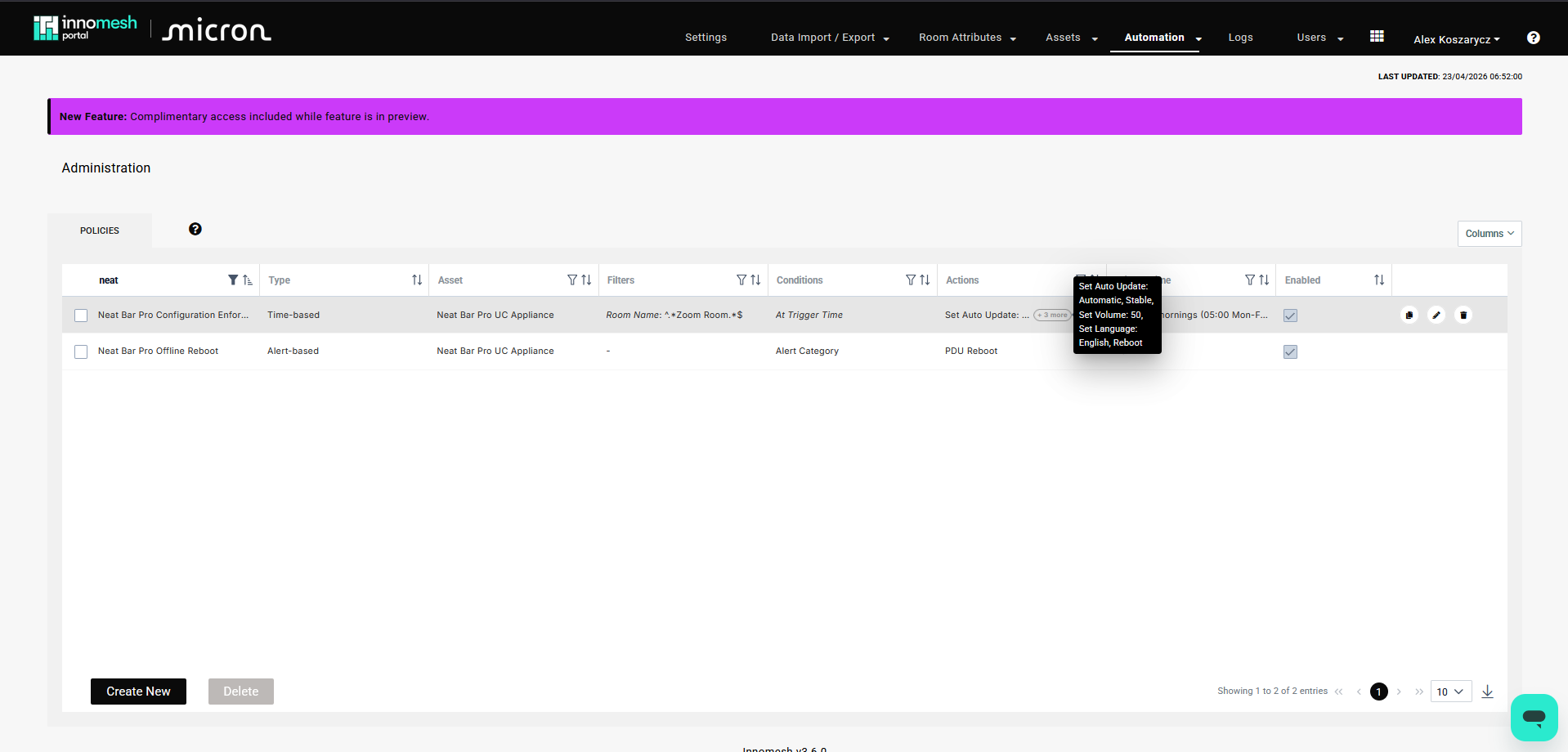
Creating an Alert-Based Policy
Alert-based policies trigger actions automatically when a hotlist alert matches one or more conditions. This enables self-healing: for example, automatically PoE-rebooting a touch panel that has dropped offline.
- Navigate to Administration → Automation → Policies.
- Click New Policy and select Alert-Based.
- Enter a descriptive name and select the target asset type.
- Define one or more conditions. Each condition matches an alert property:
- Alert Category (e.g., “Endpoint Reachability”).
- Alert Description.
All conditions support regex matching (see Using Regex Patterns).
If multiple conditions are defined, the policy triggers when any condition is met.
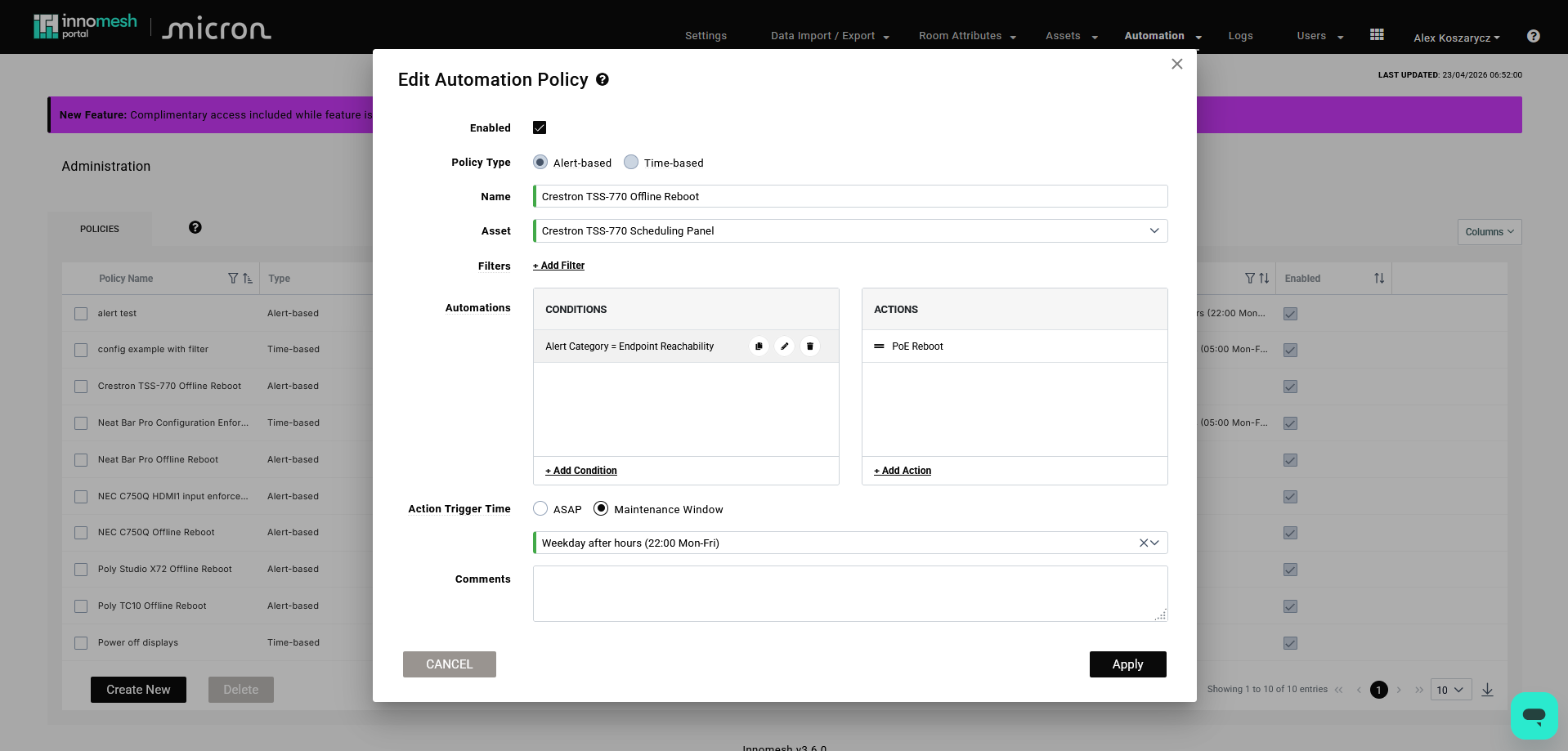
Define alert conditions | Innomesh Portal v3.6.0
- Add one or more actions, including connected-device actions like PoE Reboot if applicable.
- Choose when to run:
- ASAP: the action is scheduled at the start of the next minute.
- Maintenance Window: appropriate for non-urgent remediations where a reboot outside business hours is preferred.
- Click Apply.
On save, Innomesh immediately scans the hotlist for any existing alerts that match the policy’s conditions and creates scheduled actions for immediate remediation.
Self-Healing Behaviour
Alert-based policies include automatic cancellation and re-activation logic:
- If an alert resolves before the scheduled action runs, the action is automatically cancelled. It remains visible in the Scheduled Actions list until its scheduled time has passed.
- If the alert resurfaces after being resolved, the action is re-marked as pending and will run if the alert is still active at the scheduled time.
Filtering and Targeting
Filters restrict which assets a policy applies to. Without filters, a policy applies to all assets matching the selected asset type across all rooms.
Available filter types:
- Asset ID
- Asset Name
- Asset Hostname
- Room Name
- Template Name
- Zone Name
- Site
- User Group
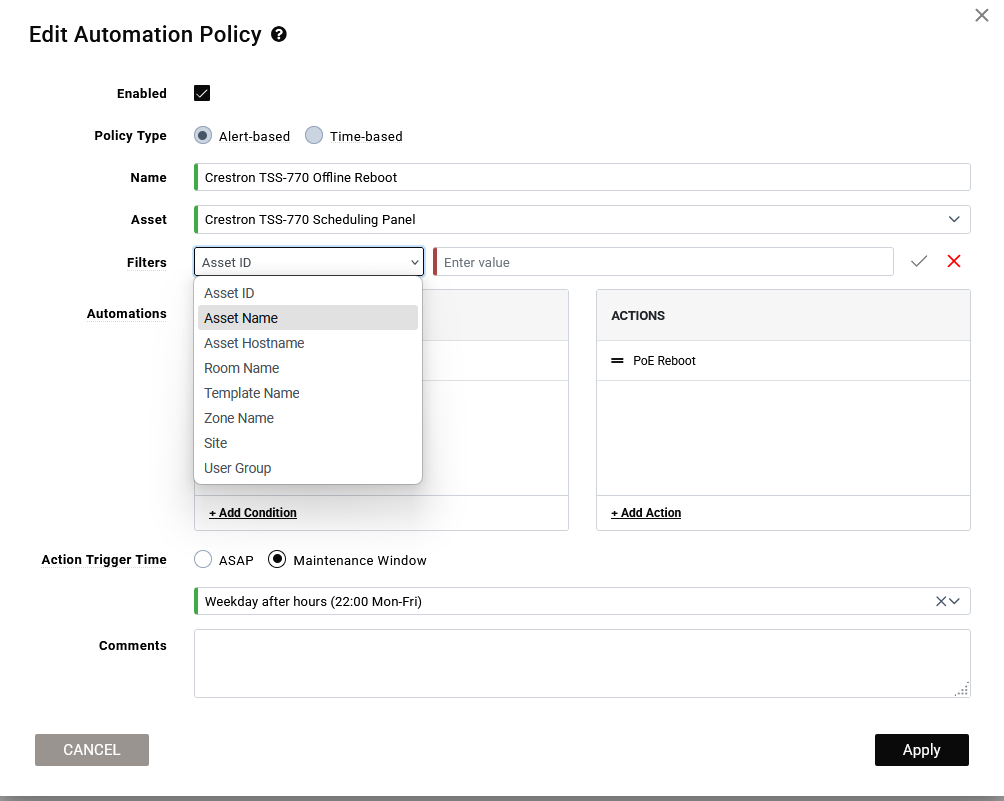
Filters can be combined. For example, filter by room name and then further narrow by user group.
To edit an applied filter, click on it. To remove a filter, click the X button.
Using Regex Patterns in Filters
For more flexible matching, use regex patterns in room name filters. Innomesh interprets the value as a regex string when it is wrapped in ^ and $ anchors.
For example, to match all rooms containing “Zoom Room”:
^.*Zoom Room.*$This pattern breaks down as follows:
| Character | Meaning |
|---|---|
^ | Start of string |
.* | Any characters (zero or more) |
Zoom Room | Literal text to match |
.* | Any characters (zero or more) |
$ | End of string |
Regex patterns also work in alert-based policy conditions. For example, to match any alert description containing the word “reboot”:
^.*reboot.*$Scheduling and Execution Options
Both policy types offer flexible scheduling:
| Option | Available For | Behaviour |
|---|---|---|
| Pre-configured Maintenance Window | Time-based, Alert-based | Runs during a defined window (e.g., Weekday After Hours, Weekday Mornings, Weekend Maintenance) |
| Custom Time | Time-based only | Runs at a specific time with day-of-week selection |
| ASAP | Alert-based only | Schedules the action at the start of the next minute after the alert is detected |
When multiple policies target the same asset at the same time, actions from the second policy are queued after the first policy’s actions complete.
Monitoring and Auditing
Scheduled Actions
Navigate to Assets → Actions to view a forecast of upcoming actions.
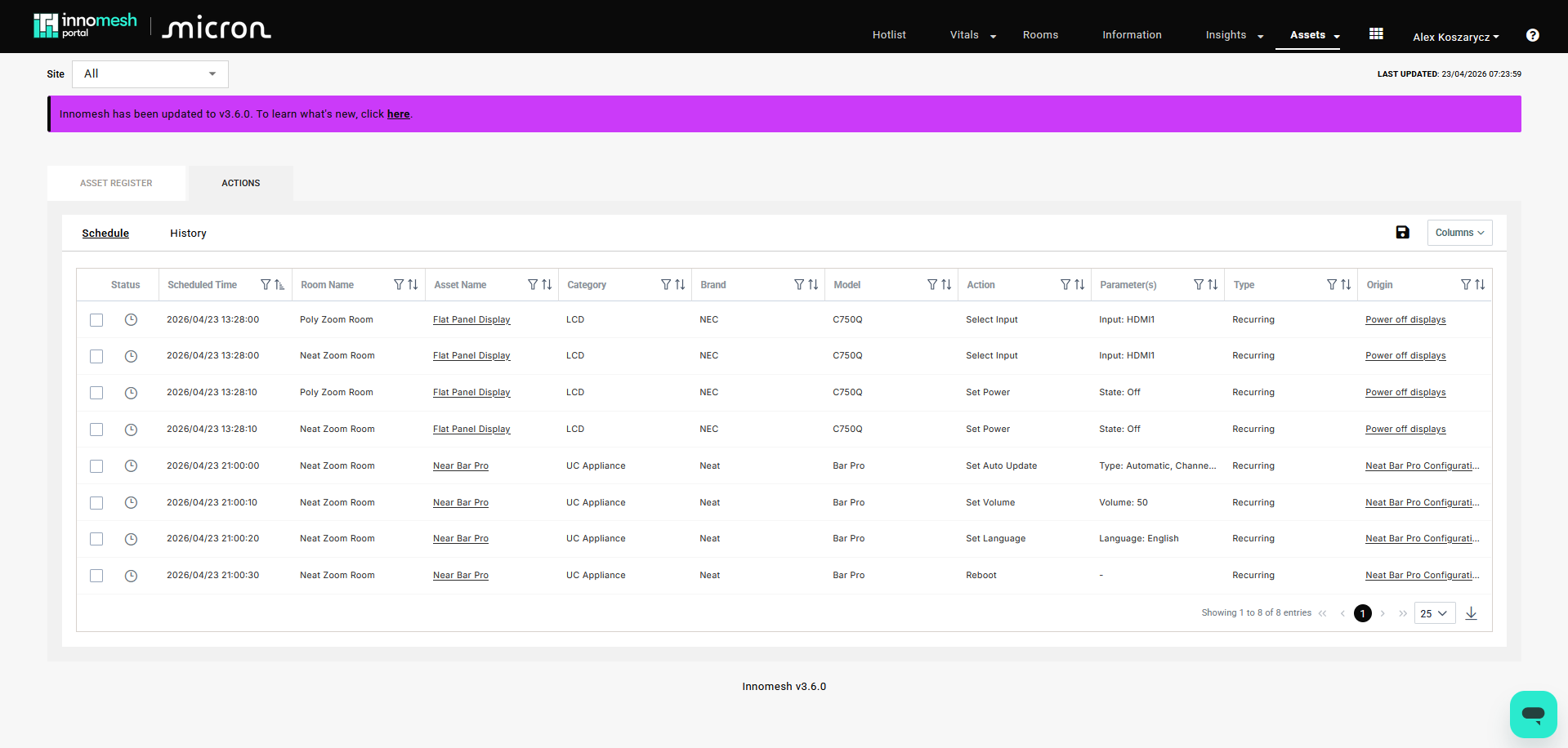
Key details:
- Each action shows its originating policy name as a hyperlink. Administrators with appropriate rights can click through to view and edit the policy directly.
- For recurring policies, only the next occurrence is displayed. After today’s actions complete, the list updates to show tomorrow’s scheduled actions.
- The page automatically updates to reflect the status of actions in progress.
- Use filters to narrow the view by policy, asset type, room, or status.
- Actions triggered directly by users also appear in this list, making it a single view of all pending asset actions.
- To remove scheduled actions, select one or more rows using the checkboxes and click Delete.
History
Navigate to the History tab on the Actions page to view actions from the last 24 hours.
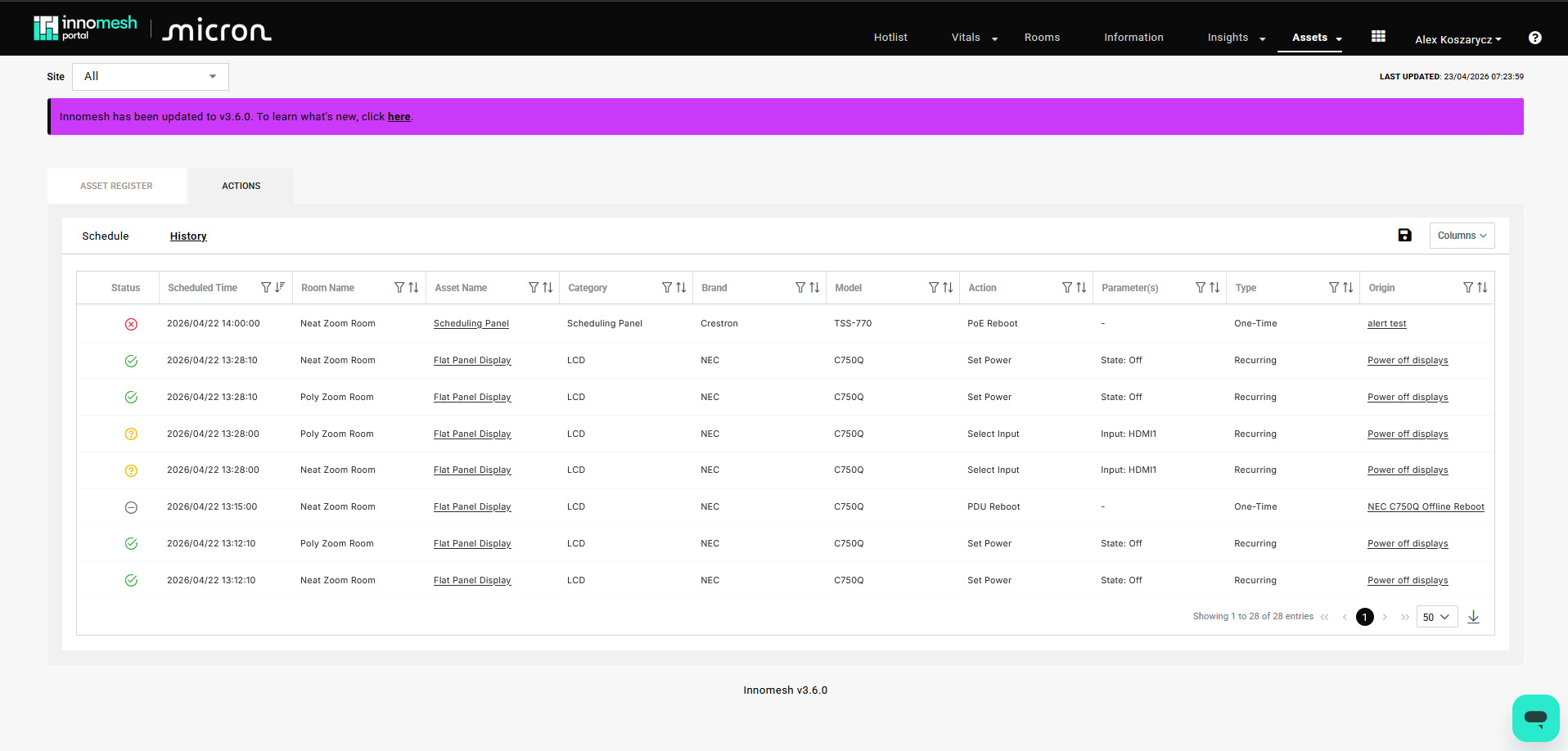
Each action displays its outcome status:
| Status | Meaning |
|---|---|
| Completed | The action ran successfully |
| Failed | The action encountered an error during execution |
| Timed Out | The action did not receive a status update within the expected time |
| Cancelled | The action was cancelled (e.g., alert resolved before execution) |
Hover over the status icon for additional contextual information about the action’s execution.
Both user-triggered and policy-triggered actions appear in the Schedule and History tabs, providing a single view for auditing all asset actions.
Common Use Cases
Configuration Enforcement
Ensure newly installed or replaced devices automatically adopt your organisation’s standard configuration. Create a time-based policy that runs every morning before the work day begins, targeting the relevant asset type with actions like Set Language, Set Volume, Set Auto Update, and Reboot.
With this in place, an integrator can install a new device and walk away. By the next morning, the device will be configured to standard.
End-of-Day Shutdown
Create a time-based policy that sets all displays to the correct input and powers them off at the end of each working day. Target the display asset type, add a Set Input and Power Off action, and schedule it for after business hours.
Self-Healing Offline Devices
Create an alert-based policy targeting touch panels or other network-connected devices. Set the condition to match “Endpoint Reachability” alerts and add a PoE Reboot action. When a device drops offline and triggers a hotlist alert, Innomesh will automatically cycle the device’s network port to attempt recovery.
Pre-emptive Reboots
For devices known to become unstable over time, schedule a weekly reboot during a maintenance window. This is a simple time-based policy with a single Reboot action set to run on weekends.
Related Articles
- Managing Hotlist Alerts
- Configuring Maintenance Windows
- Innomesh Room Configuration
- Asset Profiles and Favourites
Appendix: Action Staggering and Queuing
Understanding how Innomesh sequences actions helps predict when actions will actually execute.
Within a Single Policy
Actions on the same asset are staggered by a minimum of 10 seconds. Certain action types can have longer built-in wait times:
- Standard actions (Set Volume, Set Language, Set Input): 10-second minimum gap.
- Reboot: approximately 30 seconds before the next action.
- Firmware Update: approximately 5 minutes before the next action.
Actions on different assets within the same policy run simultaneously. Each asset maintains its own independent action timeline.
Across Multiple Policies
If two policies target the same asset and are scheduled at the exact same time, the second policy’s actions are queued after the first policy’s actions complete. This prevents action conflicts on the same device.
Appendix: Alert-Based Scheduling Behaviour
The following table summarises how alert-based actions respond to alert state changes:
| Alert State Change | Action State | Result |
|---|---|---|
| New alert detected | None | New action is scheduled (pending) |
| Alert resolves before action runs | Pending | Action is cancelled |
| Cancelled alert resurfaces | Cancelled | Action returns to pending |
| Alert still active at scheduled time | Pending | Action executes |
| Existing alert resurfaces (not new) | None | No action scheduled (prevents repetition) |
| Policy re-saved | None | Actions scheduled for all matching alerts (new and resurfaced) |